Mac storage
I deleted files but my Mac storage didn't go down. Why?
You deleted gigabytes and the storage bar didn't budge. Here are the five usual reasons and how to fix each one.
- By
- Firefly team
- Published
- Tested on
- macOS 27 Golden Gate
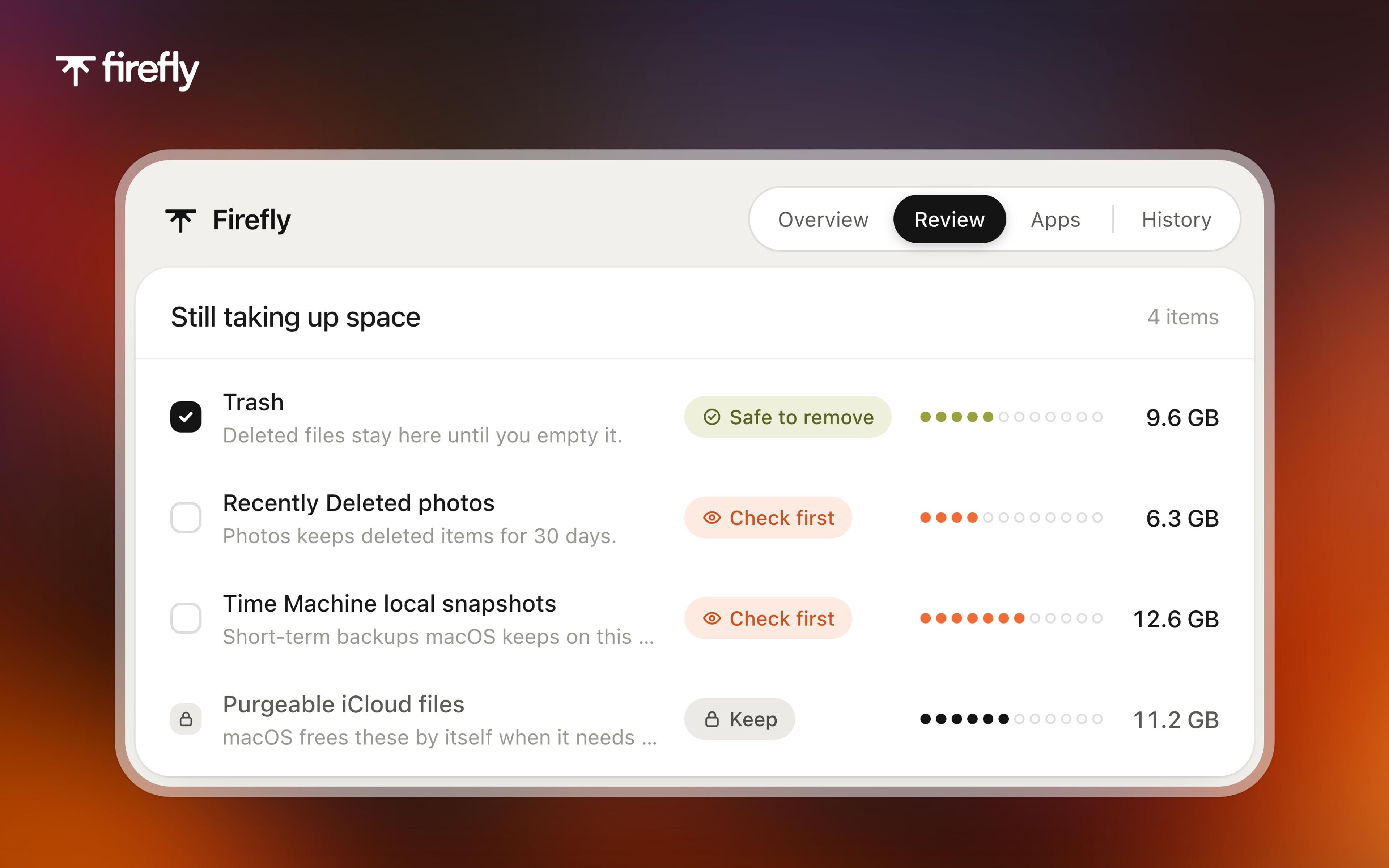
Short answer: Your Mac is almost certainly still holding on to those files somewhere. The five usual reasons are: the Trash hasn't been emptied, deleted photos are sitting in Recently Deleted, Time Machine snapshots still contain them, your Mac is counting "purgeable" space, or the storage view just hasn't refreshed. Each one has a simple fix.
First, "available" isn't the same as "free"
This trips up almost everyone. When your Mac shows how much storage is available, that number includes two things:
- Free space: genuinely empty.
- Purgeable space: files macOS is happy to remove on its own when it needs room, like Time Machine snapshots and iCloud files that also have a copy on your Mac.
Apple says you can't manually remove files marked as purgeable, because macOS removes them itself as space is needed. Most of the time that works fine. The trouble is that some installers and apps only look at truly free space, so they complain even though your Mac says there's plenty available.
The five usual reasons (and fixes)
1. The Trash isn't empty
Deleting a file moves it to the Trash, and it keeps taking up space until you empty it. Right click the Trash in your Dock and choose Empty Trash.
If you want this to happen on its own, turn on Empty Trash Automatically in System Settings, General, Storage. It erases anything that's been in the Trash for more than 30 days.
2. Deleted photos are in Recently Deleted
Photos has its own trash. Deleted photos and videos go to the Recently Deleted album and stay there for 30 days.
To get the space back now: open Photos, click Recently Deleted in the sidebar (you may need to unlock it with Touch ID or your password), select everything and delete it.
3. Time Machine snapshots still contain the files
If you use Time Machine, your Mac takes a snapshot about once an hour and keeps those for 24 hours. A file you deleted this morning can still live inside a snapshot, so the space doesn't come back straight away.
Apple deletes snapshots automatically as they age or when space is needed, and counts their space as available. Usually, waiting a day solves it.
If you need the space now:
- Open System Settings, General, Time Machine.
- Click Options and set Backup Frequency to Manually.
- Wait a few minutes, then set it back to your usual setting.
Remember step 3, or your Mac stops backing up automatically.
4. iCloud files are being counted as purgeable
If Optimize Mac Storage is on for iCloud Drive, files you've opened recently are kept on your Mac and marked purgeable. macOS should remove the local copies when it needs room, but it doesn't always do it before an installer checks.
To free a folder's space yourself: open iCloud Drive in Finder, right click a folder you don't need offline and choose Remove Download. The files stay safe in iCloud and download again when you open them.
5. The storage view hasn't caught up
The Storage page calculates in the background and can lag behind. Close System Settings, restart your Mac, and check again. A restart also clears some temporary files along the way.
"Your disk is almost full" when it clearly isn't
This warning usually means your free space is low even though your available space looks fine, because a big slice of it is purgeable. Work through reasons 3 and 4 above. Those are the ones that turn purgeable space back into free space.
How much free space do you actually need?
A common rule of thumb is to keep around 10% of your drive free, so macOS has room for updates, caches and swap files. Below that, you'll notice slowdowns and failed updates.
But don't obsess either. If you have hundreds of gigabytes free, chasing the purgeable number won't make your Mac faster.
Quick checklist
- Empty the Trash
- Empty Photos, Recently Deleted
- Restart and check again
- Wait a day for snapshots to clear, or use the Time Machine "Manually" trick
- Remove downloads of iCloud folders you don't need offline
- Check any third party backup app for snapshots
FAQ
What is purgeable space on a Mac?
Space taken up by files macOS can remove automatically when it needs room, such as Time Machine snapshots and local copies of iCloud files. It's counted as available, but it isn't truly empty yet.
Can I delete purgeable space myself?
Not directly. Apple designed it so macOS handles it. You can speed it up by clearing Time Machine snapshots or removing downloaded iCloud files, as above.
Why does System Data go up when I delete files?
Often because the deleted files are now only inside Time Machine snapshots, which can show up under System Data until they expire. More on that in why System Data is so big on your Mac.
Will a cleaner app fix this?
It can help you find what's using space, but it can't stop macOS from keeping snapshots or iCloud copies. The fixes above are free and built into your Mac.
Still can't work out where your space went? We're building Firefly to show you exactly what's taking up your storage, in plain language, and what's safe to remove. Join the waitlist.
Sources

The safest way to clean your Mac
Free up space without the guesswork.
Firefly explains every file before you touch it, keeps what macOS needs locked, and moves only what you approve. Join the waitlist and we'll tell you when it's ready.
Requires macOS 13 Ventura or later.
Keep reading
Mac storage
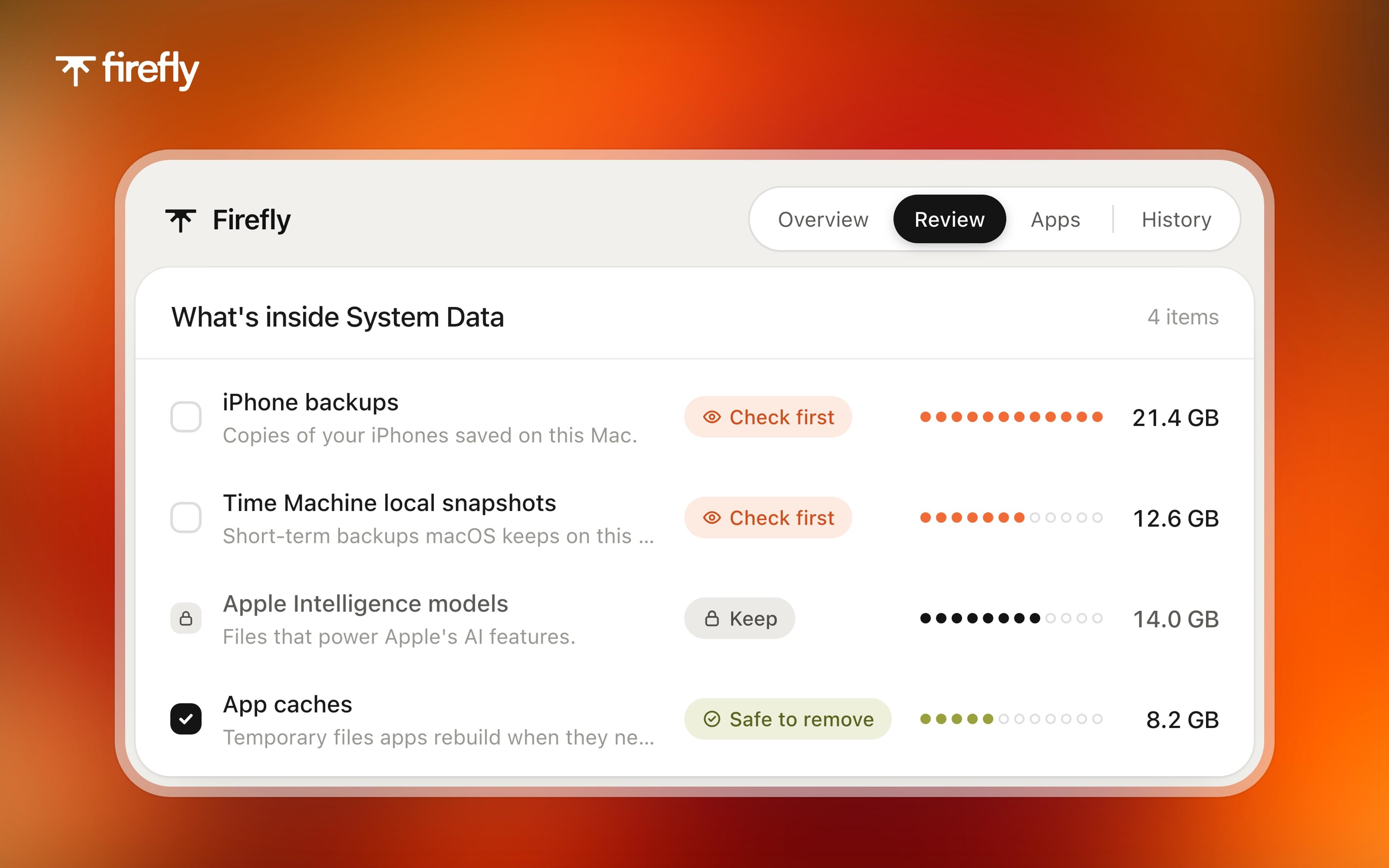
Why is System Data so big on my Mac? (And what's safe to delete)
System Data is the grey bar nobody explains. Here's what's in it, why it keeps growing, and which parts you can safely clear.
By Firefly team
Mac storage
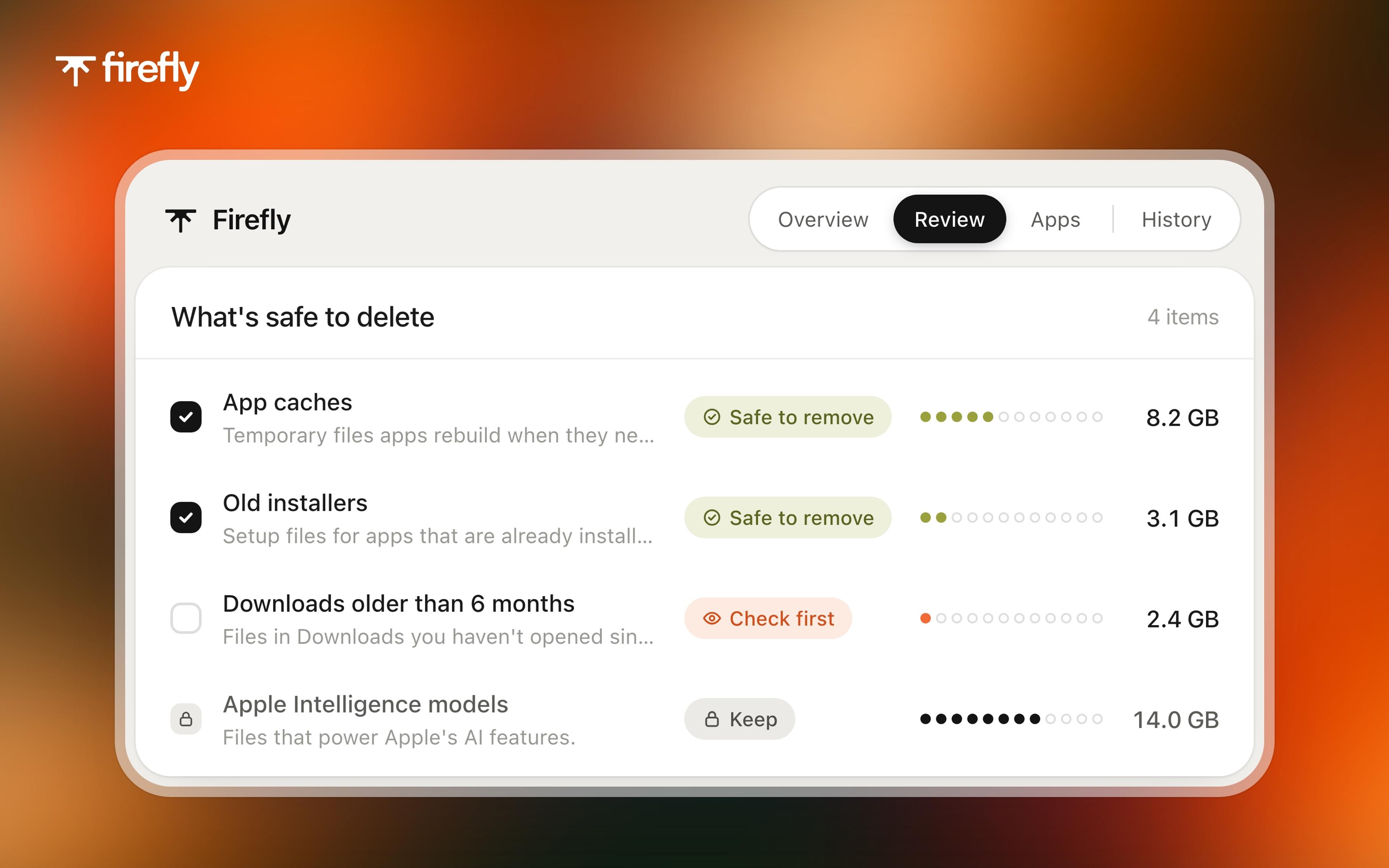
What's safe to delete on a Mac (and what you should never touch)
Safe to delete, check first, never touch. A plain English guide to freeing up space on your Mac without breaking anything.
By Firefly team