Mac storage
Why is System Data so big on my Mac? (And what's safe to delete)
System Data is the grey bar nobody explains. Here's what's in it, why it keeps growing, and which parts you can safely clear.
- By
- Firefly team
- Published
- Tested on
- macOS 27 Golden Gate
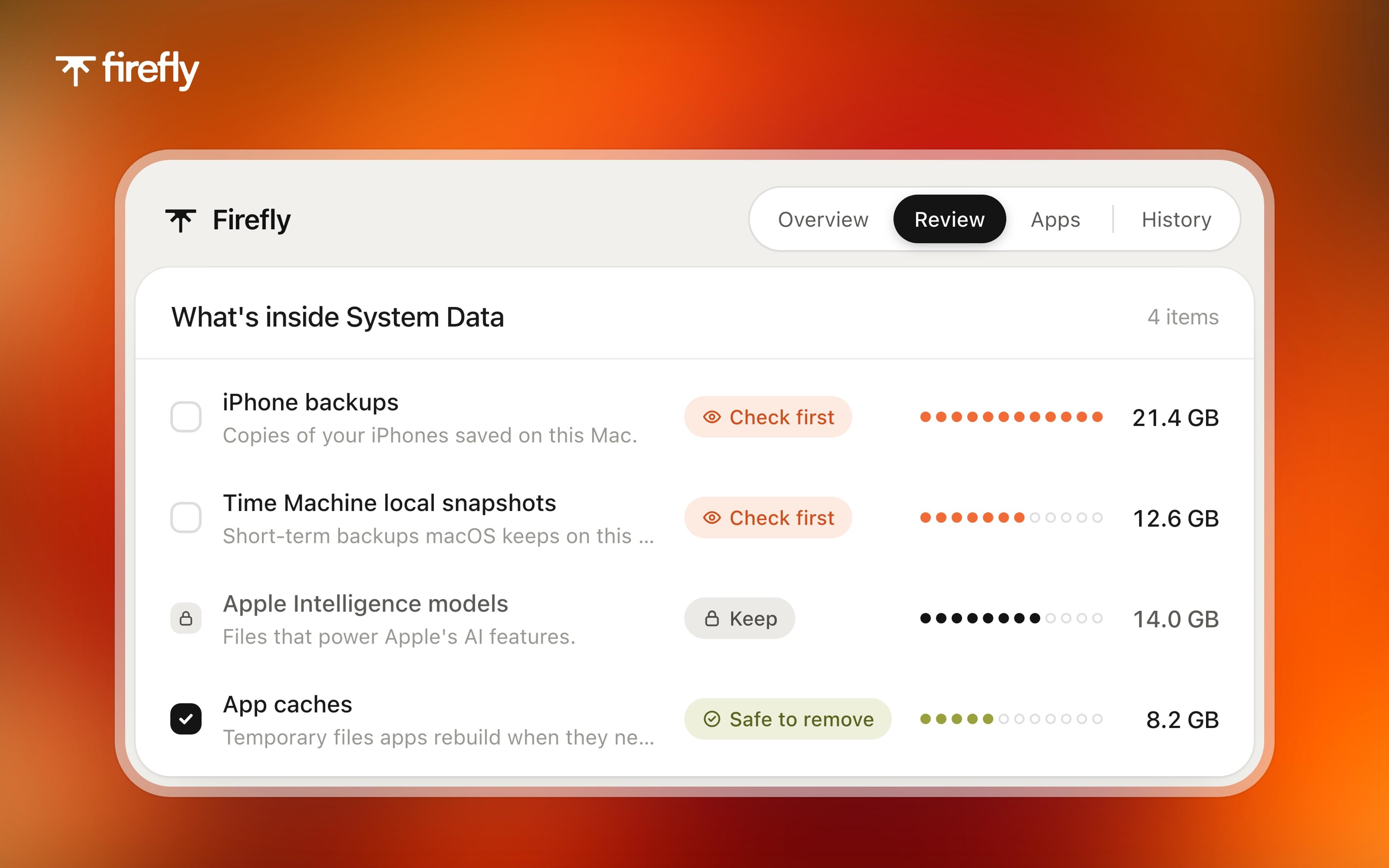
Short answer: System Data is macOS's catch all category for files that don't fit anywhere else, like Apps, Documents or Photos. It usually gets big because of a handful of things: old iPhone or iPad backups, Time Machine snapshots, app caches, leftover installers, and on newer Macs, Apple Intelligence. You can't (and shouldn't) delete System Data as a whole, but a few of those pieces are yours to clear safely.
Here's what's in there, what you can remove, and what to leave alone.
How to check how big System Data is
- Open the Apple menu and choose System Settings.
- Click General, then Storage.
- Wait for the coloured bar to finish calculating, then hover over the grey section.
This works on macOS Ventura and every version since, including macOS Golden Gate. On older versions you'll find it under Apple menu, About This Mac, Storage.
The frustrating part: most categories have an info button that shows you what's inside. System Data doesn't. That's why it feels like a black box.
What's actually inside System Data
Apple describes System Data as a general bucket for Apple and third party files that don't fit a more specific category. In practice, these are the usual suspects:
- Caches and logs. Temporary files apps and macOS keep so things load faster. They rebuild themselves after you clear them.
- Time Machine local snapshots. If you use Time Machine, your Mac saves a snapshot of your disk about once an hour and keeps them for 24 hours, plus a few extras.
- iPhone and iPad backups. If you've ever backed up a phone to your Mac, that backup can be the size of everything that was on the phone.
- Disk images and installers. The .dmg and .pkg files you downloaded to install apps.
- Leftovers from deleted apps. Dragging an app to the Trash removes the app, but often not the support files it created.
- Apple Intelligence. On Macs that support it, the on device models need several gigabytes. Apple lists up to 14GB on some newer Macs.
Why it gets so big
A few tens of gigabytes is normal. It becomes a problem when one of the items above quietly piles up. A single old phone backup or a busy week of Time Machine snapshots can add a lot. Macworld notes System Data can occasionally pass 100GB, which hurts most on a 256GB Mac.
What you can safely clear yourself
Work through these in order. The first two usually make the biggest difference.
1. Old iPhone and iPad backups
If you back up your phone to iCloud now, old backups on your Mac are often just taking up space.
- Connect your iPhone or iPad and open Finder.
- Click your device in the sidebar.
- Click Manage Backups, select the old backup, then Delete Backup.
Don't have the old phone anymore? In Finder, choose Go, then Go to Folder, and paste ~/Library/Application Support/MobileSync/Backup/. Each folder is one backup.
2. Time Machine local snapshots
Here's the good news: Apple counts snapshot space as available storage and deletes snapshots on its own when you need room. Most of the time you don't need to do anything.
If you want them gone right now, Apple's own method is:
- Open System Settings, then General, then Time Machine.
- Click Options and set Backup Frequency to Manually.
- Wait a few minutes, then switch it back to your usual setting.
Don't forget step 3. Otherwise Time Machine stops backing up automatically.
3. Installer files
Once an app is installed, the .dmg or .pkg file you used to install it isn't needed anymore. Check your Downloads folder, sort by Kind, and delete the disk images and installers for apps you've already installed.
4. App caches, from inside the app
Streaming, messaging, browser and creative apps can build up big caches. The safest way to clear them is from the app's own settings, where there's often a "clear cache" or "storage" option. Caches come back over time, so this buys you breathing room rather than a permanent fix.
5. Leftovers from apps you've already deleted
In Finder, use Go to Folder and open ~/Library/Application Support/. If you see a folder named after an app you removed months ago, it's usually safe to delete. Only do this when you're sure the app is gone, and empty the Trash afterwards.
What not to touch
- The System folder and anything macOS installed. Deleting these can stop your Mac from starting properly.
- The main Library folder at the top of your disk. This is different from the Library in your home folder.
- Apple Intelligence files. If you want that space back, turn the feature off in System Settings rather than deleting files.
- Anything you don't recognise. If you don't know what it is, leave it. Seriously, this rule saves more Macs than any cleaning tip.
Let macOS do some of the work
macOS already cleans up after itself more than people realise. When space runs low, Apple says it clears caches and logs it considers safe to delete, such as temporary database files, interrupted downloads, staged macOS and app updates, and Safari website data.
Two easy wins before you go digging:
- Restart your Mac. It clears some temporary files and lets the Storage view recalculate.
- Check Apple's recommendations. In System Settings, General, Storage, Apple suggests options like Store in iCloud, Optimize Storage and Empty Trash Automatically.
Quick checklist
- Delete old iPhone and iPad backups you don't need
- Let snapshots clear, or use the Time Machine "Manually" trick
- Delete installers from Downloads
- Clear big app caches from inside each app
- Remove leftover folders from apps you've deleted
- Empty the Trash, then restart
FAQ
Can I delete System Data completely?
No. A chunk of it is files macOS needs to run. The goal is to clear the parts that have grown out of control, not to get it to zero.
Why did System Data grow after I deleted files?
Usually because of Time Machine snapshots. Files you delete can still sit in a recent snapshot until it expires. Read why your storage didn't go down after deleting files.
Is it safe to use a cleaner app on System Data?
It can be, as long as the app shows you what it plans to remove and explains it before deleting anything. Avoid tools that wipe things in one click without telling you what they are.
How much free space should I keep?
A common rule of thumb is around 10% of your drive free, so macOS has room for updates, caches and swap files.
Not sure what's filling your Mac? We're building Firefly to show you exactly what's taking up your storage, in plain language, and what's safe to remove. Join the waitlist.
Sources

The safest way to clean your Mac
Free up space without the guesswork.
Firefly explains every file before you touch it, keeps what macOS needs locked, and moves only what you approve. Join the waitlist and we'll tell you when it's ready.
Requires macOS 13 Ventura or later.
Keep reading
Mac storage
What's safe to delete on a Mac (and what you should never touch)
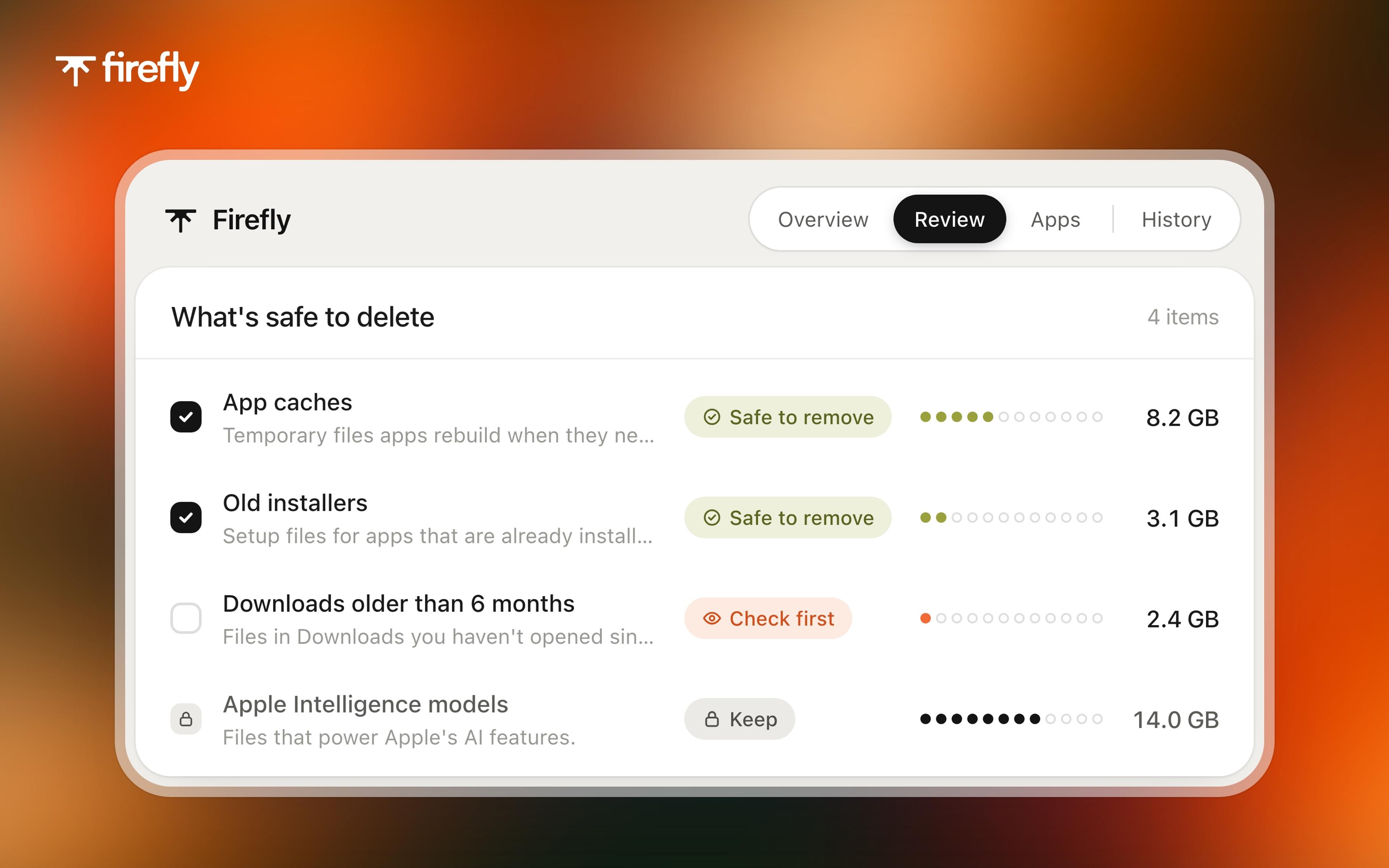
Safe to delete, check first, never touch. A plain English guide to freeing up space on your Mac without breaking anything.
By Firefly team
Mac storage
I deleted files but my Mac storage didn't go down. Why?
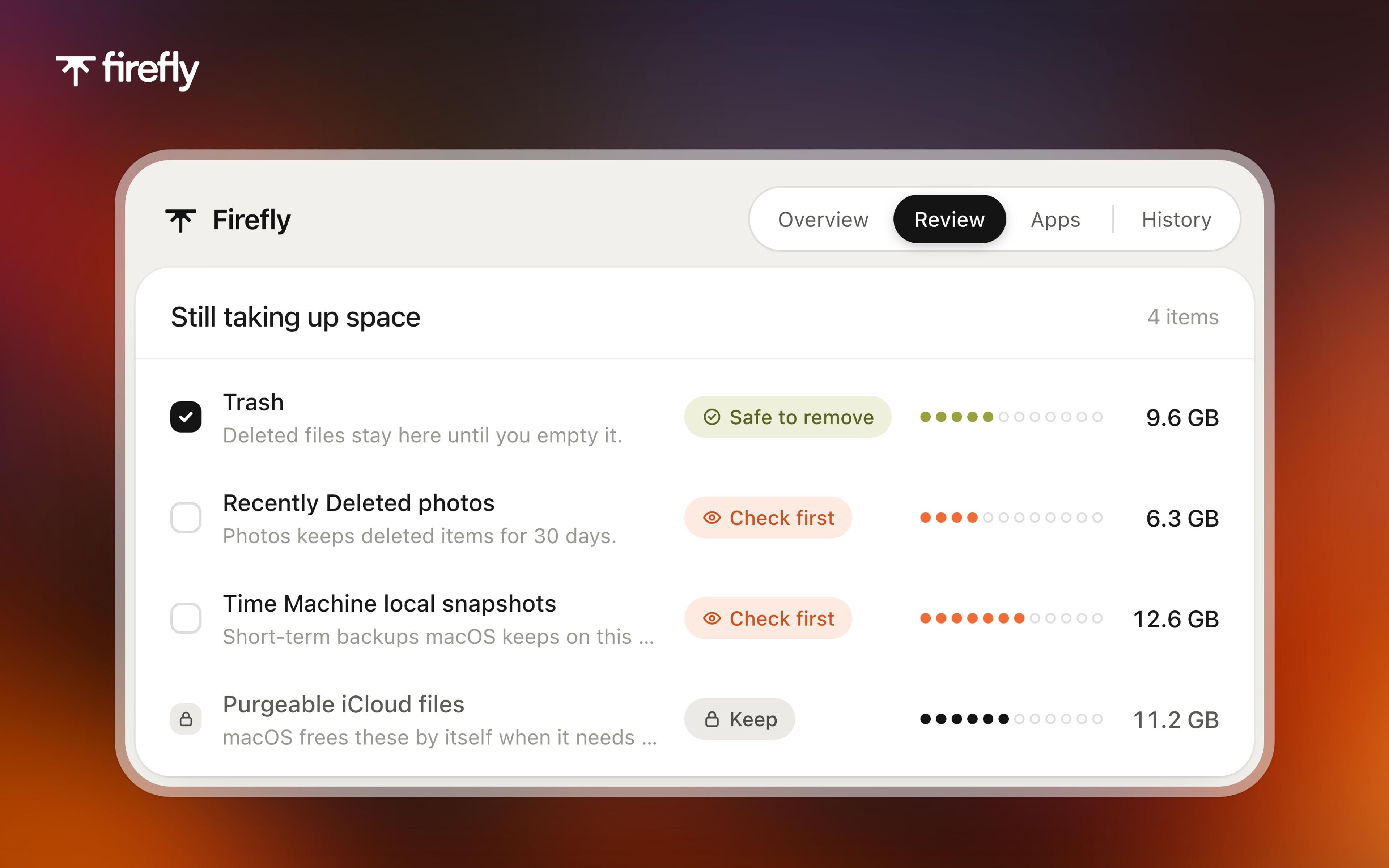
You deleted gigabytes and the storage bar didn't budge. Here are the five usual reasons and how to fix each one.
By Firefly team